.svg)

.svg)
.svg)

🇺🇸 22 Boston Wharf Rd, Boston, MA 02210
🇬🇧 2 Pear Tree Court, London EC1R 0DS
© 2026, Juro. All rights reserved.


🇺🇸 22 Boston Wharf Rd, Boston, MA 02210
🇬🇧 2 Pear Tree Court, London EC1R 0DS
© 2026, Juro. All rights reserved.

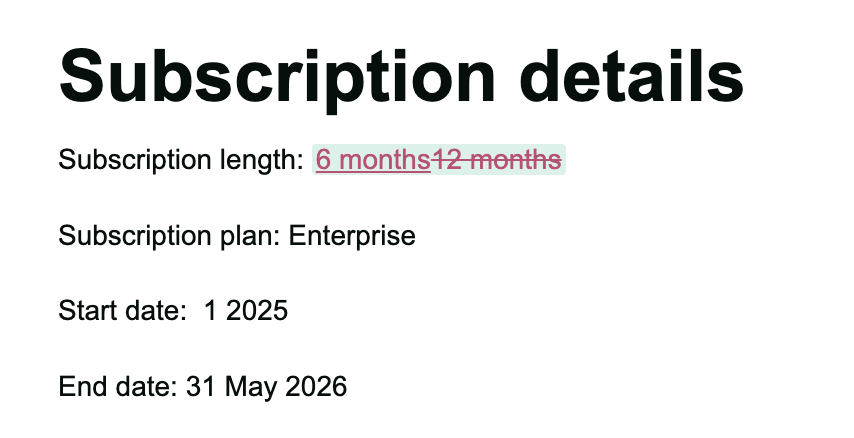
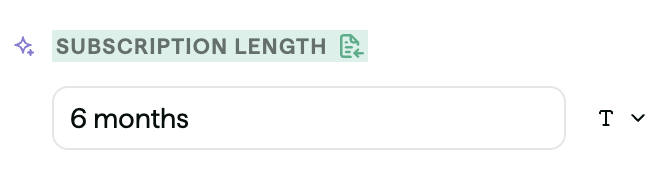
When you upload a docx into Juro, any change to a smartfield value is now shown in Juro as a redline, so the changes are more visible when you review the document:
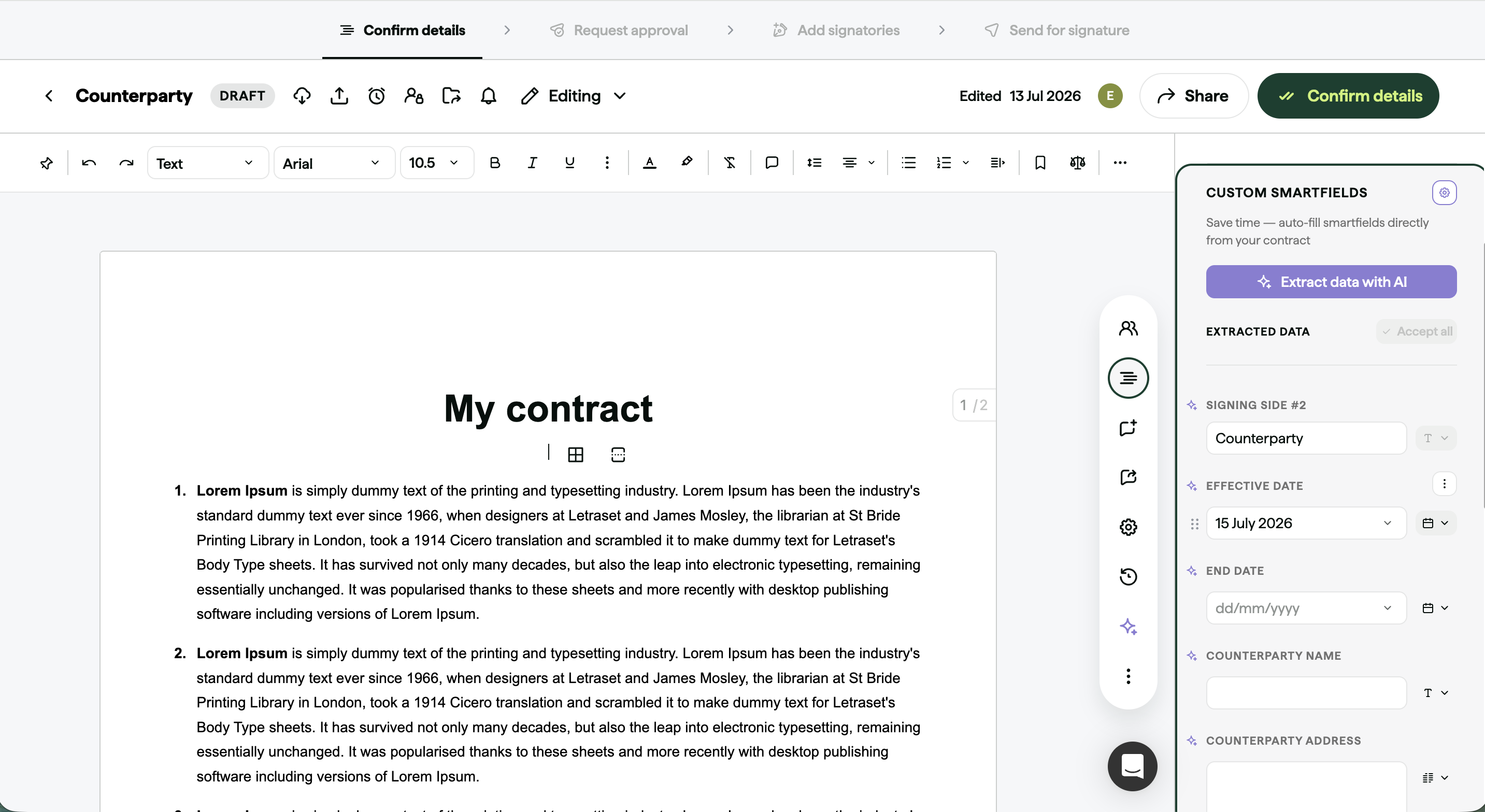
We've added a step-by-step guide to the contract editor on contracts you create, showing you exactly where a contract is in its journey and what to do next: Confirm Details, Request Approval, Add Signatories, and Send for Signature.
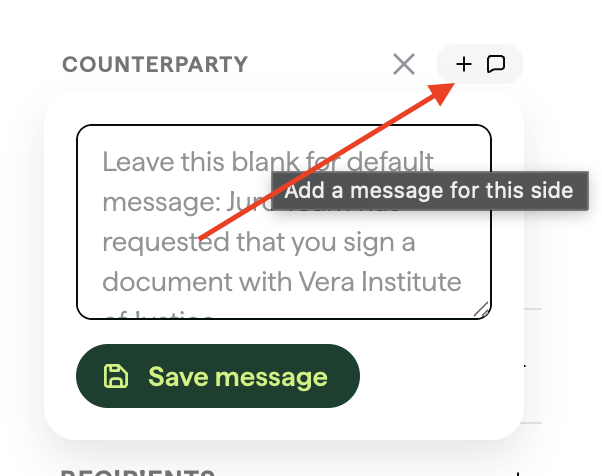
You can now set a default message for signing requests at the template level.
When a contract is created from that template and sent for signature, the message is pre-filled on the "Send signing request" screen, meaning no need to write it from scratch each time, and it can still be edited before sending.
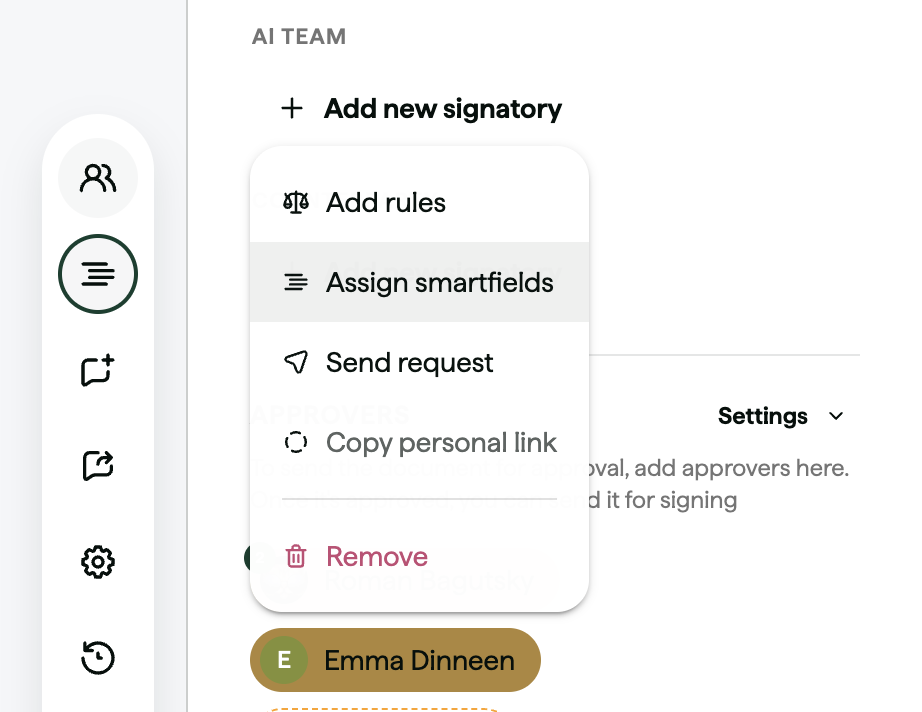
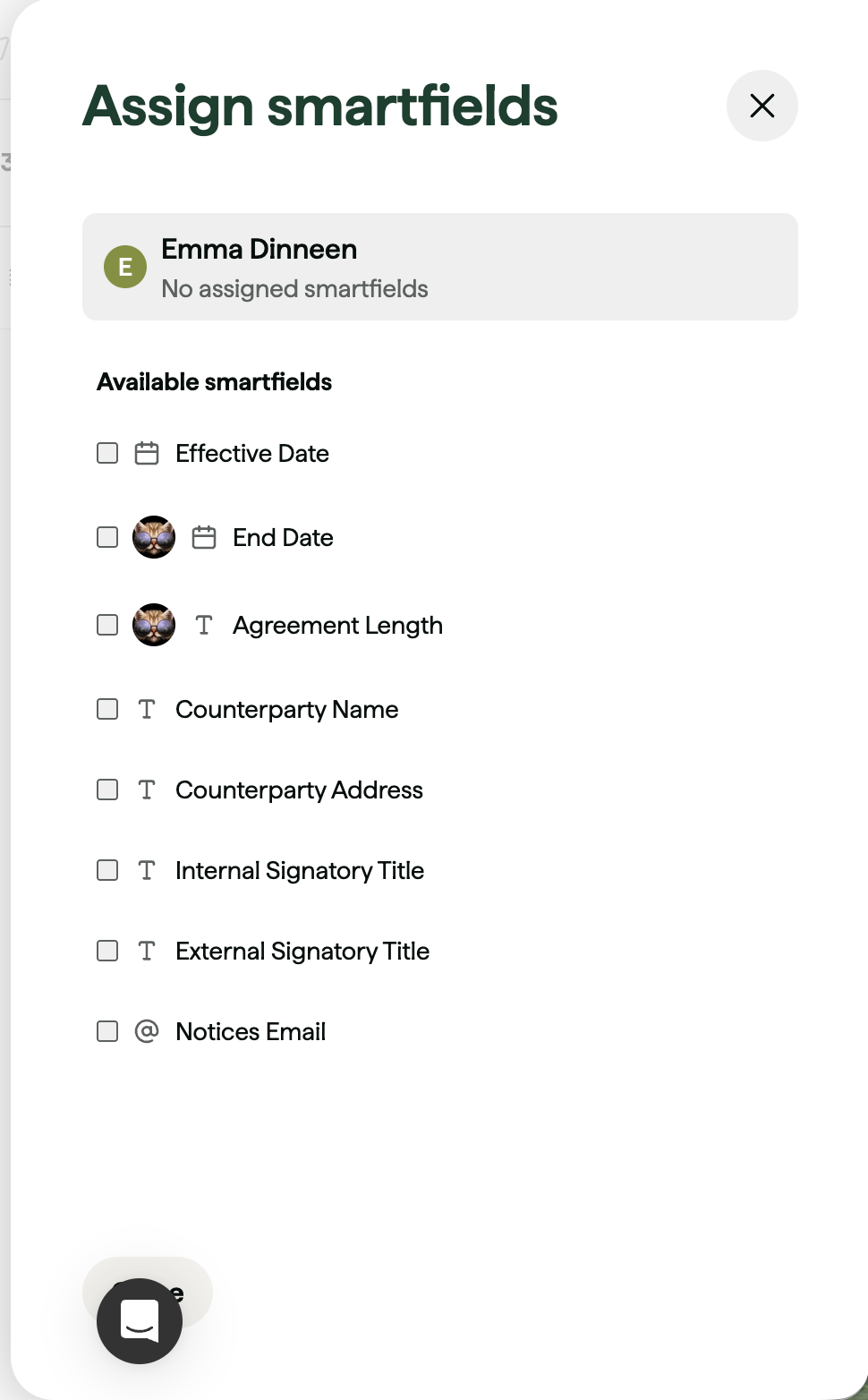
You can now assign approvers to specific smartfields instead of the whole document. Once assigned, an approver is only notified when that smartfield changes - so a minor edit elsewhere in the contract no longer resets approval for everyone.
Approvers with no smartfields assigned work as before.
Conditional rules are still applied first: if a smartfield is conditional, its approver is only added to the document once the condition is met. From there, they only need to approve that smartfield rather than the whole document.
Assigning smartfields to approvers:
Contact the Juro customer team to explore your new features in more depth. If you're new to Juro, use the form below to book your demo and try these features for yourself.